In an era where our smartphones hold the keys to our digital lives, privacy has become more than just a preference—it is a fundamental necessity. Among the myriad of messaging applications we use daily, WhatsApp remains a titan, connecting billions of people worldwide. Whether you are discussing sensitive business matters, sharing personal moments with family, or coordinating surprises, the sheer volume of confidential information passing through your chats is staggering. Recognizing the growing demand for enhanced user privacy, WhatsApp introduced a powerful feature designed to shield your most sensitive interactions from prying eyes: Chat Lock.
Understanding WhatsApp Chat Lock
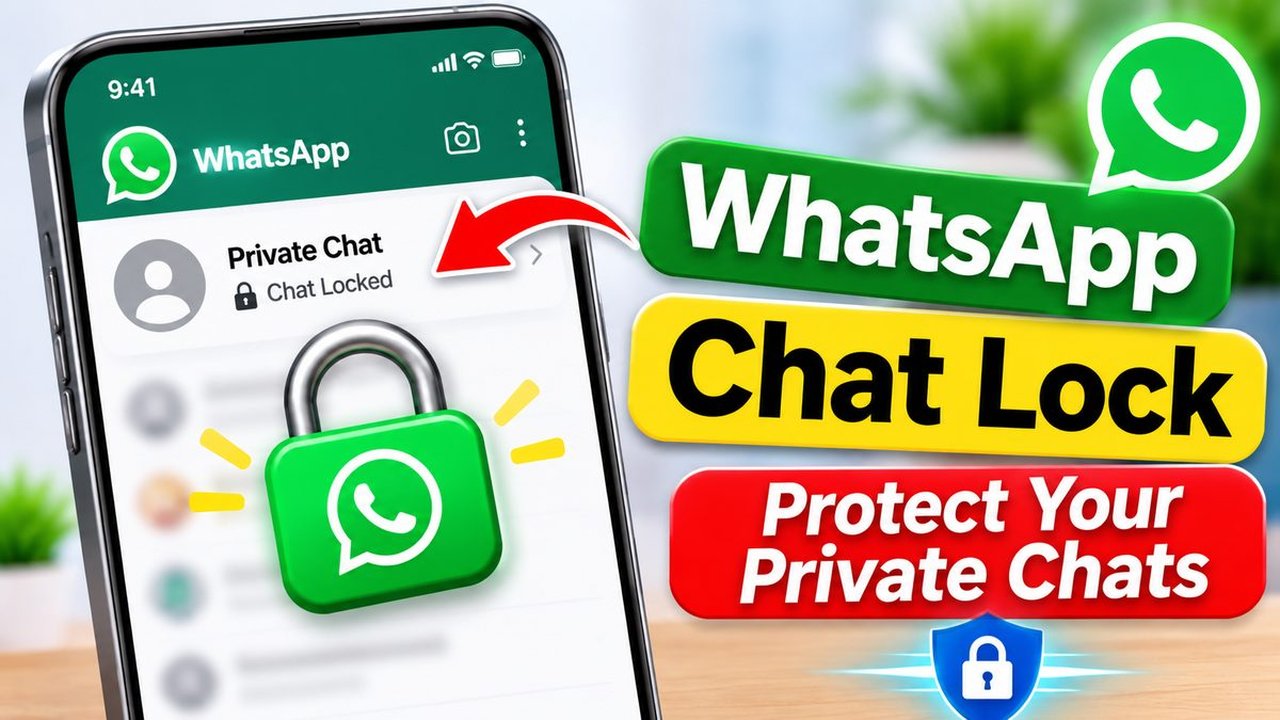
Before diving into the mechanics of securing your messages, it is essential to understand what WhatsApp Chat Lock actually does. When you lock a specific chat, WhatsApp removes it from your standard inbox and places it inside a dedicated folder labeled ‘Locked Chats’. Furthermore, the notification banners for incoming messages from that specific conversation will no longer display the sender’s name or the actual message content. Instead, the notification will discreetly read, ‘WhatsApp: 1 new message’.
This feature goes a step beyond the standard application lock (such as Face ID or fingerprint authentication for the entire app). While app locks prevent unauthorized users from opening WhatsApp altogether, Chat Lock allows you to keep the application accessible for everyday use while maintaining a secure, invisible vault for your most private dialogues. It relies on your device’s biometric authentication—such as your fingerprint, Face ID, or a custom secret passcode that is separate from your phone’s unlock code—ensuring that even if someone unlocks your phone, they still cannot access your locked conversations.
Step-by-Step Guide: How to Lock Your Chats
Enabling Chat Lock is a straightforward process that takes only a few seconds per conversation. Whether you are using an iPhone or an Android device, the steps are intuitively designed. Here is how you can secure your individual and group chats today:
Locking Individual and Group Chats on Android
If you are an Android user, follow these steps to secure your conversations:
1. Open WhatsApp and navigate to the chat you want to lock.
2. Tap on the contact name or group name at the top of the screen to open their profile details.
3. Scroll down the profile menu until you find the option labeled ‘Chat lock’.
4. Toggle the switch to ‘Lock this chat with fingerprint’ (or face unlock, depending on your device’s capabilities).
5. Confirm your identity by scanning your fingerprint or using your device’s biometric verification.
6. Tap ‘View’ to see your newly secured conversation inside the Locked Chats folder.
Locking Chats on iPhone (iOS)
Apple users can secure their conversations with a similarly seamless workflow:
1. Open WhatsApp and go to your Chats tab.
2. Locate the specific chat you wish to protect and swipe left across it.
3. Tap on the ‘More’ icon (represented by three dots) or directly tap the ‘Lock’ icon that appears in the swipe menu.
4. Alternatively, you can open the chat, tap the contact or group name at the top, select ‘Chat Lock’, and toggle it on.
5. Confirm the action using Face ID or Touch ID when prompted by the system.
How to Access and Manage Your Locked Chats
Once you have secured your conversations, finding them requires a specific gesture that keeps them hidden from casual observers. When you open your main WhatsApp chat list, swipe down slowly from the top of the screen. A new folder labeled ‘Locked Chats’ will appear at the very top, marked with a padlock icon.
Tap on this folder and authenticate your identity using your biometrics or secret passcode. Once unlocked, you will see all your protected conversations in one place. From here, you can read messages, reply to contacts, and manage your locked threads just like regular chats. If you ever decide that a chat no longer needs protection, simply go back to the contact’s info page, select ‘Chat Lock’, and toggle it off after verifying your identity.
Advanced Security Tips for Maximum Privacy
While WhatsApp Chat Lock provides an exceptional layer of defense, true digital hygiene involves a holistic approach to your cybersecurity. To ensure your private conversations remain impenetrable, consider implementing the following best practices:
Set a Secret Passcode: By default, Chat Lock uses your phone’s biometric data. However, you can create a unique secret code consisting of letters, numbers, and emojis. This provides an extra tier of security if someone knows your device’s main passcode.
Enable Two-Step Verification: Protect your entire WhatsApp account from SIM-swapping and unauthorized logins by setting up a six-digit PIN in your account settings.
Manage Cloud Backups: Remember that locked chats are secure on your device, but if you back up your chat history to iCloud or Google Drive without end-to-end encryption enabled for backups, those messages could potentially be exposed elsewhere. Always ensure your cloud backups are fully encrypted.
Frequently Asked Questions
Does locking a chat hide it from the person I am messaging?
No. Chat Lock only hides the conversation on your device. The person you are chatting with will still see their normal chat window with you, and they will not be notified that you have locked their conversation on your end.
Will locked chats still send notifications when I receive a new message?
Yes, you will receive notifications, but they will be heavily sanitized for privacy. The sender and the message content will be hidden from the lock screen, showing only a generic alert that you have a new message.
Can I lock desktop chats on WhatsApp Web or Desktop App?
Currently, Chat Lock is primarily designed for mobile devices (iOS and Android). When you link your device to WhatsApp Web, locked chats will remain hidden within the web interface until unlocked on your phone, though future updates may expand direct desktop management.
What happens to my locked chats if I switch to a new phone?
When you transfer your WhatsApp history to a new smartphone using an encrypted backup, your chat locks will need to be re-enabled on the new device, as security configurations do not always automatically transfer over for privacy reasons.
As our digital footprints continue to expand into every corner of our daily routines, taking proactive steps to safeguard our personal communications is no longer optional. By integrating tools like WhatsApp Chat Lock into your digital habits, you reclaim control over your personal space, ensuring that your most intimate conversations remain strictly between you and the intended recipient, no matter who happens to pick up your phone.
Frequently Asked Questions
How do message notifications behave when a chat is protected using WhatsApp Chat Lock?
When you lock a specific conversation, incoming message notifications change significantly. Instead of displaying the sender name and the actual text preview, your phone will discreetly show a generic alert stating WhatsApp 1 new message, keeping your private discussions completely hidden from anyone glancing at your screen.
Does locking a conversation on WhatsApp also secure it on your linked companion devices?
No, chats that you lock on your primary smartphone will remain visible and unlocked on any linked devices, such as WhatsApp Web or desktop applications. The Chat Lock feature currently operates exclusively on the mobile device where the biometric authentication is registered.
Can I use a different passcode for my locked chats than the one used to unlock my phone?
Yes, WhatsApp Chat Lock allows you to set a custom secret passcode that is entirely separate from your phone's main unlock code. This provides an extra layer of defense, ensuring that even if someone knows your device PIN, they still cannot breach your hidden conversations.
What happens to media files sent within a locked WhatsApp conversation?
Media files such as photos and videos received inside a locked chat are kept secure by default. Unlike regular chats, these media items are typically not automatically saved to your phone's device gallery, preventing them from appearing in your public camera roll and maintaining your privacy.