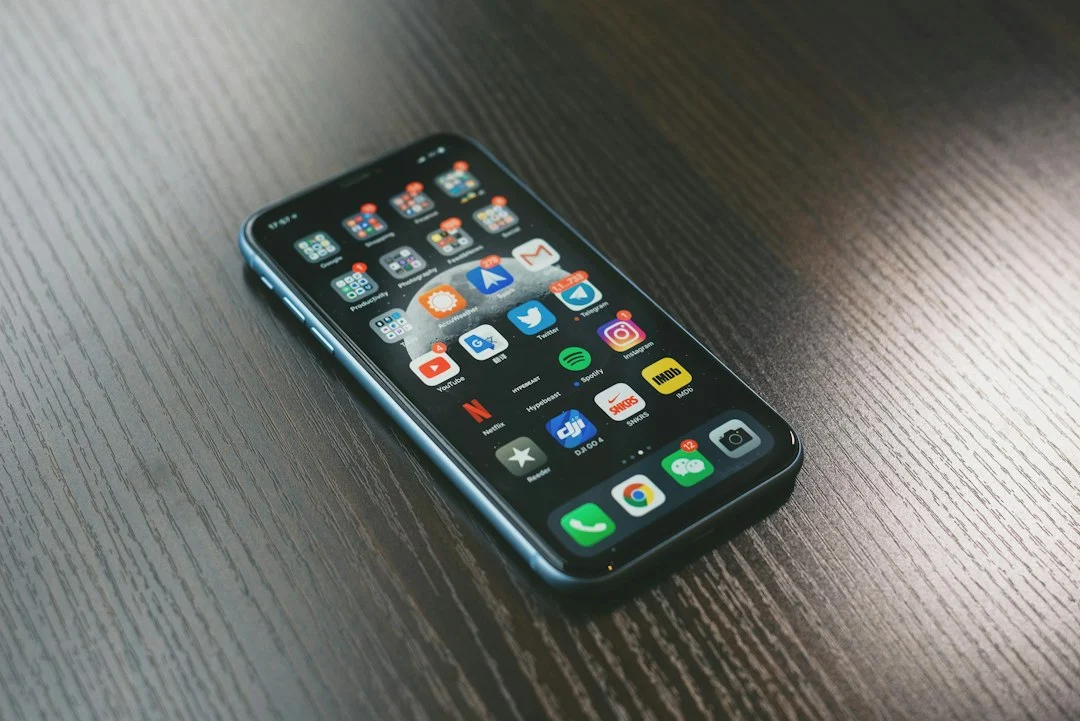
Smartphones have become indispensable tools in our daily lives, serving as cameras, navigation systems, work portals, and primary communication devices. Yet, despite steady increases in internal storage capacities, many users frequently encounter the dreaded ‘Storage Full’ notification. Often, the main culprit isn’t high-resolution photography or hefty mobile games, but rather a ubiquitous messaging platform running quietly in the background: WhatsApp. With billions of active users globally exchanging countless text messages, voice notes, high-definition images, and lengthy video files daily, the application can quietly consume tens of gigabytes of device memory. Understanding how to manage WhatsApp storage and effectively reclaim your phone’s capacity is an essential digital maintenance skill that guarantees smoother device performance and prevents unexpected app crashes.
Understanding How WhatsApp Consumes Device Storage
Before diving into cleanup procedures, it helps to understand how WhatsApp handles data. Unlike cloud-first applications that stream content upon demand, WhatsApp traditionally downloads almost all media files directly to your device’s local storage by default. Every time a friend shares a funny video, a relative forwards a morning greeting image, or a colleague sends a PDF document, your phone saves a physical copy of that file. Over months and years, these files accumulate in hidden folders, duplicating themselves across various chats and backups. Furthermore, active participation in multiple large group chats accelerates this process exponentially, turning your messaging app into a silent storage hog that drains both internal memory and processing efficiency.
Step-by-Step Guide to Managing and Clearing WhatsApp Storage
Fortunately, the application provides built-in tools designed to help users audit and clean up their digital clutter. By navigating through the settings menu, you can pinpoint exactly which chats and file types are occupying the most space and delete them selectively without losing important text conversations.
Using the Built-In Storage Management Tool
Both Android and iOS versions of the application feature a dedicated storage management interface that categorizes your data for easy review.
To access this feature, open WhatsApp and navigate to Settings, then tap on Storage and Data, and finally select Manage Storage. This dashboard provides a visual breakdown of your used and available space, highlighting files larger than 5 MB and items that have been forwarded many times. You can review these categories individually, select unwanted files in bulk, and delete them permanently to instantly recover gigabytes of valuable phone memory.
Adjusting Media Auto-Download Settings
Preventing unnecessary files from downloading in the first place is the most effective long-term strategy for storage conservation. Within the Storage and Data menu, locate the Media Auto-Download section. Here, you can configure whether photos, audio, videos, and documents download automatically when using cellular data, Wi-Fi, or roaming. Unchecking these options for larger file types—especially videos and documents—ensures that your phone only downloads media from chats you actively choose to engage with, dramatically reducing unwanted digital debris.
Clearing Individual Chats and Groups
If you prefer a more granular approach, you can clear specific conversations that contribute heavily to storage bloat. Navigate to Settings > Storage and Data > Manage Storage, where you will see a list of chats ordered by the amount of space they consume. Tapping on a specific contact or group reveals all the media shared within that thread. You can review and delete specific heavy files while keeping cherished text memories intact, or choose to clear the entire contents of the chat while retaining the conversation thread itself.
Advanced Tips for Keeping Your Phone Storage Optimized
Beyond standard in-app cleaning, adopting a few proactive habits will ensure your smartphone remains agile and responsive over the long term.
Disabling Camera Roll Saving on iOS and Android
By default, WhatsApp often saves incoming photos and videos directly to your phone’s native gallery or camera roll. This creates duplicate copies of every media file: one within the app database and another in your device’s photo library. To prevent this redundancy, go to Settings > Chats and toggle off Save to Camera Roll (on iPhone) or Media Visibility (on Android). This simple adjustment keeps your primary photo gallery clean and drastically cuts down on storage duplication.
Leveraging Cloud Backups Wisely
Regular backups to iCloud or Google Drive are crucial for preventing data loss when switching phones, but these backups also mirror your local clutter. Periodically reviewing what gets included in your cloud backup prevents you from paying for unnecessary cloud storage tiers or cluttering your personal cloud drives with redundant media files that you no longer need.
Frequently Asked Questions About WhatsApp Storage
Does deleting media from WhatsApp delete it from my phone permanently?
Yes, when you delete media files through the WhatsApp storage management tool or directly within a chat, those files are permanently removed from your device’s local memory. If you have automatic saving to your phone’s native gallery enabled, a copy may still exist there unless you delete it separately.
Will clearing WhatsApp storage delete my chat history?
No. Using the storage management tools allows you to target media files such as videos, photos, documents, and audio messages. Your text message history remains completely safe and intact.
How often should I clean my WhatsApp storage?
The ideal frequency depends on your usage habits and how many active group chats you belong to. However, conducting a quick storage review and cleanup once every month or two is generally sufficient for most active users to prevent storage warnings.
Maintaining a healthy digital environment requires mindful habits, much like tidying up a physical living space. By taking a few moments to audit your messaging data, adjust automated download preferences, and eliminate redundant files, you ensure that your smartphone remains fast, responsive, and ready to capture the moments that truly matter without the constant interruption of storage warnings.
Frequently Asked Questions
Does deleting media files through WhatsApp's Manage Storage tool also delete them from my phone's gallery?
Yes, when you permanently delete photos, videos, or documents through the built-in Manage Storage interface, those physical files are removed from both the application and your phone's local storage or native gallery apps. This ensures complete reclamation of your device's memory capacity.
Will changing my Media Auto-Download settings delete the files that are already saved on my device?
No, altering the auto-download preferences only prevents future incoming media from saving automatically to your phone. Any files that have already been downloaded and stored in your device memory will remain untouched until you manually review and delete them.
Can I selectively delete large files from a group chat without losing important text messages?
Yes, by using the Manage Storage menu, you can view specific chats and isolate heavy files like videos and PDFs. WhatsApp allows you to selectively delete these bulky media items while preserving your entire text conversation history intact within the app.
Why does WhatsApp consume so much more storage than other messaging applications?
Unlike cloud-native services that stream media upon request, WhatsApp traditionally downloads a physical copy of every received photo, video, and document directly to your local device memory by default, leading to massive accumulation over time, especially in active group chats.