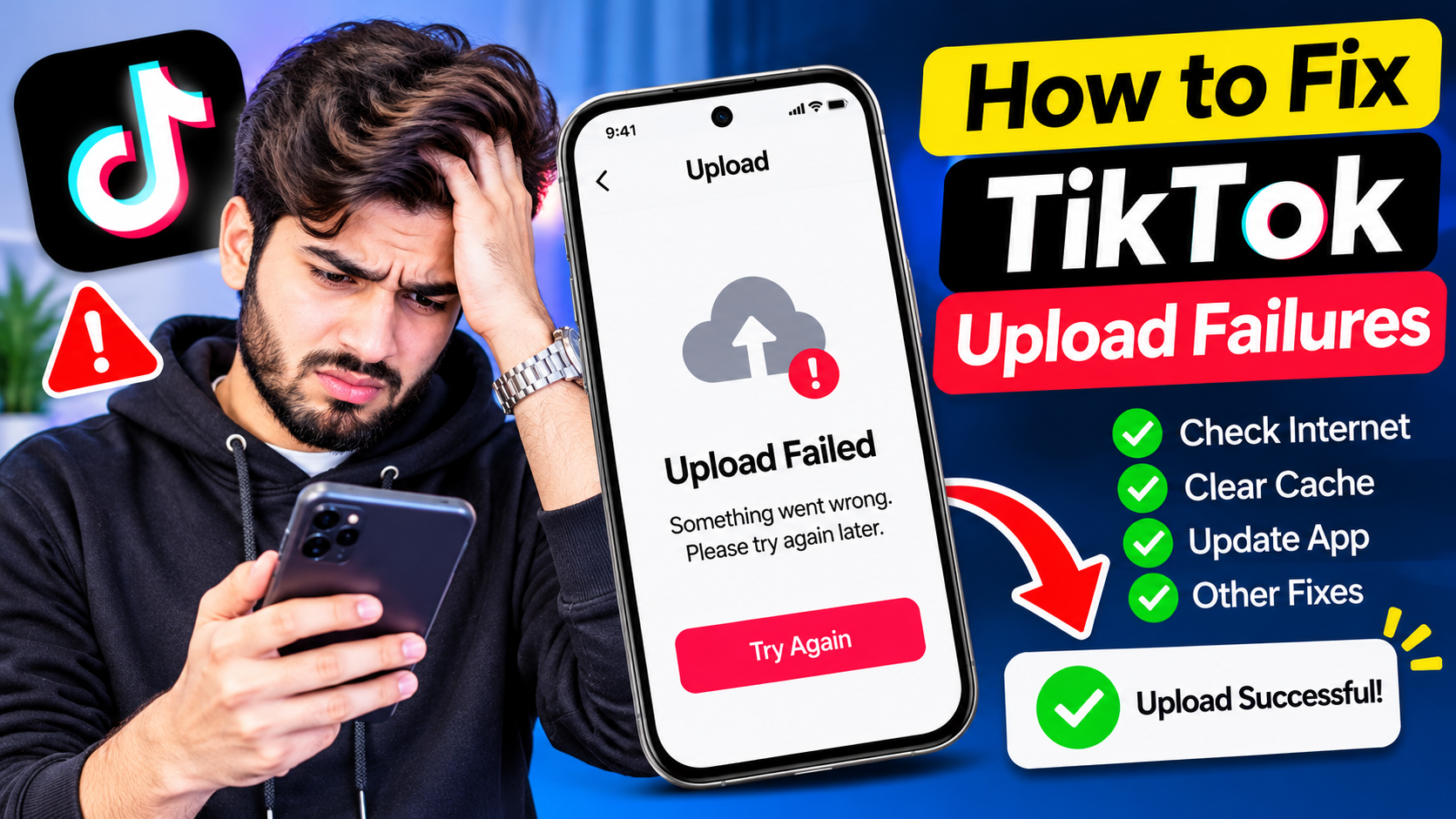
Creating engaging content for TikTok takes time, creativity, and effort. Whether you are following the latest dance trend, sharing educational insights, or showcasing a product, hitting that post button is always an exciting moment. However, that excitement can quickly turn into frustration when your video gets stuck on uploading, fails to process, or gives you a generic error message. Experiencing upload failures on social media platforms is a common hurdle, but fortunately, most of these issues are easy to diagnose and resolve once you know what is causing them.
Understanding Why TikTok Uploads Fail
Before diving into troubleshooting steps, it helps to understand why your TikTok videos might not be uploading. The most frequent culprit is network instability. TikTok relies heavily on a strong, consistent internet connection to transmit large video files to its servers. If your Wi-Fi drops or your mobile data fluctuates mid-upload, the process will stall. Another major factor is app performance. Over time, cached data accumulates within the TikTok app, leading to glitches that can interfere with background processes like uploading and rendering.
File compatibility also plays a critical role. TikTok has specific requirements regarding video formats, resolutions, and file sizes. If you are uploading a heavily edited video exported in an unsupported format or with an overly large file size, the platform’s servers may reject it automatically. Additionally, server-side outages happen. If TikTok’s servers are undergoing maintenance or experiencing an unexpected crash, no amount of troubleshooting on your end will get the video to upload until their engineering team resolves the issue.
Step-by-Step Troubleshooting Guide
When you encounter an upload failure, working through a systematic troubleshooting process is the fastest way to get your content live. Here are the most effective practical steps you can take to fix the issue:
1. Check Your Internet Connection
Start by verifying your internet speed and stability. Switch between Wi-Fi and mobile data to see if the problem persists on a different network. If you are on Wi-Fi, try restarting your router. Sometimes, a simple network refresh is all it takes to clear the blockage and let your video finish uploading.
2. Clear the TikTok App Cache
Accumulated cache data often corrupts temporary files within the app. To clear your cache, open TikTok, go to your profile, tap the three-line menu icon in the top right corner, and select Settings and Privacy. Scroll down to Free up space and tap Clear next to Cache. Note that this will not delete your drafted videos, but it will remove unnecessary temporary files that might be causing glitches.
3. Restart the App and Your Device
Force-closing the TikTok application and reopening it refreshes the user interface and re-establishes a fresh connection to the servers. If that does not work, perform a full restart of your smartphone. This clears the device’s RAM and terminates any background processes that might be conflicting with the app.
4. Update the TikTok App
Running an outdated version of TikTok can cause compatibility issues with current server protocols. Head over to the Apple App Store or Google Play Store, search for TikTok, and tap Update if a newer version is available. Developers frequently push patches that fix known bugs, including upload errors.
5. Verify Video Format and Size
Ensure your video meets TikTok’s technical guidelines. The platform primarily supports MP4 and MOV file formats. If your video is extremely long, high-resolution (like 4K at 60fps), or has a massive file size, try compressing it using a video editing tool before attempting to upload it again.
Advanced Fixes for Persistent Issues
If you have tried the basic troubleshooting steps and your videos still refuse to upload, you may need to dig a little deeper. Check official social media channels or third-party outage detectors like Downdetector to see if TikTok is experiencing a widespread service interruption. If the servers are down, your only option is to wait patiently until service is restored.
Another advanced method is to save the video as a draft, reinstall the TikTok app completely, and then log back into your account. Reinstalling ensures you have a pristine, uncorrupted version of the application. However, be cautious: uninstalling the app may delete local drafts that haven’t been saved to your device’s camera roll. Always download a copy of your edited video to your phone’s gallery before deleting the app to prevent losing your hard work.
Frequently Asked Questions
Why does my TikTok get stuck at 0% when uploading?
This is almost always caused by a poor internet connection or a temporary server timeout. Try switching from Wi-Fi to cellular data, or save the video as a draft, restart the app, and try uploading again.
Will I lose my drafts if I clear the TikTok cache?
No, clearing the cache inside the TikTok settings will not delete your drafts. It only removes temporary junk files. However, uninstalling the app entirely will delete your drafts if they are not backed up to your camera roll.
What is the maximum video size allowed on TikTok?
For iOS users, the maximum file size is 287.6 MB. For Android users, the limit is slightly higher at 72 MB for in-app uploads, but up to 2 GB if you upload via a desktop browser. Keeping your files well within these limits ensures a smoother upload process.
Can I upload TikTok videos from a computer?
Yes, you can upload videos through the TikTok desktop website (tiktok.com/creator-center). This is often a great alternative if your mobile device is struggling with network stability or file processing.
Mastering the digital landscape requires patience, especially when technical roadblocks disrupt your creative momentum. By understanding the underlying mechanics of network connectivity, app maintenance, and file optimization, you can quickly navigate past upload errors and focus on what truly matters: connecting with your audience, sharing your unique perspective, and keeping your digital community engaged.
Frequently Asked Questions
Will clearing my TikTok app cache delete any of my saved video drafts?
No, clearing your app cache within the TikTok settings will not delete your drafted videos. It only removes temporary junk files and accumulated data that often cause background processes, such as video uploads and rendering, to glitch or freeze.
Why does TikTok automatically reject certain edited videos even with a strong internet connection?
TikTok has strict technical requirements for file compatibility. If your video uses an unsupported format, is exceptionally large, or features an overly high resolution like 4K at 60fps, the platform servers may automatically reject the file regardless of your network strength.
How can I determine if a failed upload is caused by TikTok's own servers rather than my phone?
When basic troubleshooting fails, you can check third-party outage detectors like Downdetector or monitor official social media channels. If TikTok is experiencing an unexpected crash or scheduled maintenance, no fixes on your device will work until their team resolves the issue.